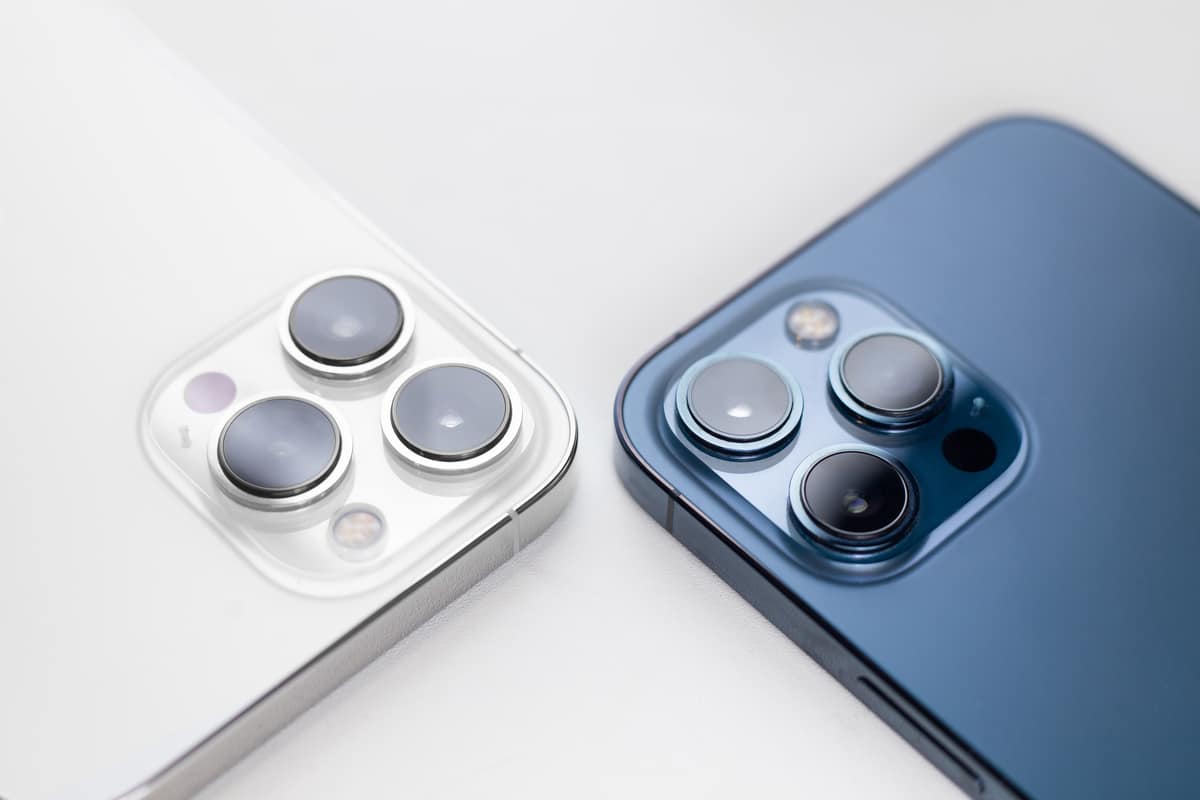
iPhones are known for their super-duper user-friendly features and Man of Steel build. But as you know, even the best devices, just like people, can run into issues, especially iPhones, which are notorious for their bugs. These issues usually appear for users after they update their devices, like a bad marriage. An update is supposed to solve your problems, but iPhones apparently just didn’t get the memo. The good news: there are solutions to post-update issues, which we’ll get right into in this blog. If only everything in life was this easy!
Can Updating an iPhone Cause Problems?
Yes, don’t be surprised, but updating an iPhone can cause problems with your device. It sucks, we know! iPhones boast security features, but some other stuff is less good, if you know what we mean. Each new iOS is supposedly better for keeping your data safe and secure, like a bank keeping your hard-earned dollars. But to maintain this security, Apple tells users to update their iPhones ASAP when new updates become available. But each update is just annoying for users.
Kind of like that one bad Tinder date that just won’t stop messaging. An actually successful update gives users access to the latest features, like dynamic lock screens. But it also introduces as many bugs as on a hot summer’s night, that users are honestly tired of complaining about, if only Apple would listen! These issues usually include temporary slowdowns, battery drains, and minor bugs. Too much, right?
What Causes iPhone Issues After an Update?
The appearance of issues on an iPhone after an update is typical. These issues, including app crashes, battery drain, and slowdowns, often really come from software bugs (so many problems come from bugs, for real), compatibility issues with old apps, conflicting and confusing settings, not enough storage, and background processes reindexing (what does that even mean).
An update doesn’t break features forever, and most of the time, simple fixes like a forced restart, clearing the cache, or even just waiting can resolve all your phone’s problems. But in some cases, an issue can become a huge bummer, and that’s when you need to actively work on a fix (not that kind of fix).
7 Common iPhone Issues After an Update
So, let’s dive right in, just like at your next pool party! Here are seven super common iPhone issues after an update, and, of course, the best solutions you can try.
Battery Draining Faster Than Usual
A quicker battery drain is a big inconvenience. Nobody likes dangling a power bank awkwardly everywhere or having to keep their phone plugged in while using it. When apps are running in the background, brightness is at maximum, or data is on, the battery pays the ultimate sad price. But in some cases, the battery drains so fast it’s as fast as when you finish your first drink after a hard day’s work.
Fixes
If your phone’s letting you down with a fast battery drain after the latest annoying software update, here are a few fixes you can easily implement to try to solve this issue:
- Activate low power mode
- Keep auto brightness on
- Just be done with it and deactivate less important features, like location tracking and Bluetooth: do you really use them??
- If the battery health is below 80%, don’t wait, replace your battery, kind of like your uncle’s knee replacement surgery, it can only help.
Slow Performance or Lag
Another common annoyance that suddenly shows up like an uninvited guest is slow performance or lag. It usually happens in updated iPhones because of software glitches, low storage space, or overloaded background processes.
You don’t need to know what it all means, but you’ve probably experienced that sometimes, a screen can freeze completely, like when your leg falls asleep if you’ve been sitting for too long. The most common solution for performance issues is to simply wait. Go out, make some coffee, watch a show or a bunch of reels, and let your iPhone get back to normal on its own. And if your iPhone isn’t better after some rest, let’s look at some solutions to help it.
Fixes
Here are some easy ways you can stop your phone from being too slow to be helpful.
- Perform a forced restart: Hold down the main button until the Apple logo appears on the screen. Once the phone restarts, the performance issues can just disappear. To restart, press and quickly release the volume down button. Then, press and hold the side button. When the Apple logo appears, release the side button.
- Free up storage: Delete junk files and apps, it’s like spring cleaning. Transfer large photos or videos to Cloud storage to have more space in the iPhone and make it work better again.
Wi-Fi or Mobile Network Connectivity Problems
Many people say there are Wi-Fi and mobile network connectivity issues on their iPhones, especially after a recent update. And you know that when your phone doesn’t have internet, it’s basically useless. Lucky for you, these problems can be solved with a few quick troubleshooting steps, unlike that broken fence in your yard that’s been sitting there since last fall.
Fixes
Check the status of your mobile network, signal reception, and Wi-Fi router to make sure any non-phone issues are out of the way. Here are some fixes you can try.
- Click “forget” and then reconnect to Wi-Fi with your username and password (try writing down some hints in the future if you forget!) Make sure you’re connected to the right network, not your friendly but kind of out there neighbor “SoonersWarrior33.”
- For mobile networks, turn the mobile data off and on. The solution to a lot of technology problems really is just, “Have you tried turning it off and on again?”
- Restart your router. Should be easy, if your dog hasn’t already unplugged it by running over the cord!
- Turn off VPNs, security apps, and low power modes, because they interfere with the internet connection. If you don’t have any, no problem!
- Toggle airplane mode on and off. This simple step is shockingly effective because this problem is so common.
Overheating
Overheating is a bad issue for many reasons, because so much heat can damage your phone’s internal components. It’s a phone, not a microwave. It’s not supposed to heat! But don’t worry, overheating usually occurs only when you’re using your iPhone excessively for gaming, streaming, or loading large files, especially when it’s plugged in for charging. But watch out, in some cases, overheating can be an external issue. Still fixable though.
Fixes
Before you throw your phone in the freezer (which we don’t recommend!), here’s how you can resolve overheating issues.
- Cool down: First, if you notice your phone overheating, IMMEDIATELY shut down all applications and place it in a cool, dry, well-ventilated place (not under sunlight). Remove heating sources, unplug the charger, and remove the case.
- Replace faulty charger: Apple recommends using a charger that comes with the original box. If that charger is damaged, they say you should purchase a charger directly from the Apple store. Using third-party, incompatible chargers can often lead to slooow charging times and overheating your device. But you know, in some cases, even your original charger can get broken and cause overheating. So just always make sure you’re using the right charger in the right condition.
- Resolve battery issues: Sometimes internal battery problems can cause overheating, kind of like how you’re an oven at night and don’t need all the blankets your wife likes. Get your iPhone evaluated by a real technician for potential repairs and battery replacements.
Apps Crashing or Not Opening
A very common problem among iPhone owners is the crashing and freezing of apps. In many cases, an app might not even open, kind of like how you lock your keys inside your car sometimes. This issue can certainly become a major thorn in a busy, productive day or a frustrating moment during your doomscrolling hours. Fortunately, some easy troubleshooting steps can solve this problem.
Fixes
- A simple restart might do the job.
- Clear app caches manually. There are different ways to do this, like simply deleting and reinstalling an app, or offloading it in Settings.
- Some apps have an in-app clearing cache capability. Just check, trust us, it’s worth it.
- Update the app to its latest version if none of that works.
- Remove apps that you keep saying you’ll use, but don’t use (fitness apps, anyone?), to free up storage space for apps that you actually need.
Lagging Keyboard
A lagging keyboard is a surprisingly common problem for iPhone users that mostly appears after an update. This issue is usually caused by software bugs, low storage, or too many languages installed on the keyboard (how many do you actually speak??). The amazing thing is that a lagging keyboard is usually fixable with a few simple steps.
Fixes
- Restart your iPhone. That usually solves the problem.
- Reset keyboard dictionary. Go to Settings > General > Transfer or Reset iPhone > Reset > Reset Keyboard Dictionary. There!
- Remove extra keyboard languages that you don’t need. Go to Settings > General > Keyboard > Keyboards. Ta-da!
- Disable keyboard features, such as auto correction, predictive text, or spell check (be honest, you don’t alway s need it, see what we did here?)
- Free up storage space in your phone. Insufficient space can often cause a lagging keyboard. We know you love your photos, but just get them to the Cloud!
Absent or Glitchy Sound
A common issue after iOS updates is that you may not hear sound/voice from your iPhone at all, or it could be distorted or glitchy. In some cases, all you may hear is static or crackling sounds, like in The Ring (but not as scary). Apple is on your side though, they acknowledge this issue, and they recommend some easy fixes.
Fixes
Here is how you can fix no sound or weird sounds in your iPhone.
- Make sure the silent mode is turned off. You’d be surprised how common it can be! Especially if your kid got their hands on your phone and played with it.
- Make sure “Do Not Disturb” is off. We know, we know, sometimes you don’t want to be disturbed, but it’s not like that.
- Remove all screen protectors, cases, and films from your device. These things may be blocking your speaker. Just trust us, try it, and be careful with your phone while you do it.
- Check the opening of the speaker and the receiver to make sure it’s not dirty or blocked. If it is, use a soft-bristle brush to clean it up. Never toothpicks!
- Go to Settings > Sounds (or Settings > Sounds & Haptics) and drag the Ringtone and Alerts slider back and forth a few times. If you don’t hear any sound, or if your speaker button on the Ringtone and Alerts slider is dimmed, your speaker could sadly need professional service. But at least now you know.
- If the problem only happens when you’re on call or FaceTime, it may be an issue with your internet or network connection. Usually you can just unplug the router and plug it back in, or, worst case scenario: nobody likes calling their internet company, but sometimes you gotta do it.
Things to Consider Before Updating to a New iOS
Before you update your iOS to the latest version, consider a few things.
- Wait for reviews: Not all iOS updates are worth signing up for. Wait for the reviews and feedback from fellow iOS users to decide whether you really need an update. Save yourself the headache.
- Back up your data: An update gone wrong, which it sometimes does on iPhones, can lead to data loss. Make sure your data is backed up in the Cloud before you update your phone, you don’t want to lose any precious memories like photos.
- Do not bother updating on release day: Avoid updating your device the same day an update is released. Immediate updates can sometimes include “day one” bugs and performance issues that Apple patches later (who would have thought, right?) It’s honestly good to wait a few weeks before you update your device.
- Check your storage: If you’re already running low on storage, an update will just make things so much worse for your iPhone’s performance. If you can, upgrade to a device with more storage instead of updating your existing one.
- Check your battery: Never update with a low battery, since a recent update can drain it, and an already low battery will make things worse. Also, keep in mind that a low iPhone battery life (generally below 80%) indicates your battery is chemically aged or “retired,” and your phone will slow down in performance to prevent complete shutdowns. In this case, it’s easy to replace the battery before installing any updates.
When Should You Contact a Professional?
Issues with iPhones are common after an update, and experts, technicians, and Apple customer support (and even just Apple enthusiasts) often suggest quick fixes and troubleshooting steps to help users resolve them independently. But unfortunately there are times when users can’t find a solution even after performing all recommended troubleshooting steps, like everything we told you about above. If that happens, there is probably a problem with your phone’s internal components, like integrated circuits, motherboard, battery, and screen. An iPhone can also be hacked and corrupted by malicious software, making any troubleshooting efforts completely useless. In that case, you should find a professional technician to look at your phone and work on strong, long-term repairs.
Summary
Updating is always recommended for iPhone users (at least by Apple) because every major update supposedly offers more convenient features and security upgrades. But these updates often introduce more bugs and software glitches than some folks would like to admit. Almost every other update accompanies performance, sound, and battery issues. Following the main troubleshooting steps we explained in this article will often help you resolve these issues promptly. But if the problem doesn’t get better, you can always contact professional technicians at 911 Phone Repair for reliable, cost-effective repairs. We’re here for you!
Frequently Asked Questions(FAQs)
References
Crosley, Sloane. WIRED. “Phone Updates Used to Be Annoying. The Latest iOS Is Awful.” WIRED, December 18, 2025. https://www.wired.com/story/phone-updates-used-to-be-annoying-the-latest-ios-is-awful/.